-
Shop
- Adidas
- Advanced Technologies
- Bathroom
- Best-Sellers
- Car Accessories
- Dating & Social Skills
- Digital Resources
- AI & Technology
- AI Skills
- Beauty
- Budgeting & Saving
- Car Buying & Ownership
- Cozy Feast Collection
- Electronics & Technology
- Emotional Intelligence
- Entrepreneurship & Business Growth
- Financial Education
- Financial Independence
- Financial Mindset & Psychology
- Goal Setting
- Home Styling & Organization
- Kitchen & Recipes
- Leadership
- Mindfulness
- Mindset
- Motivation
- Online Business
- Parenting & Child Development
- Personal Style & Fashion
- Pet Lifestyle & Wellness
- Positive Thinking
- Productivity
- Self Confidence
- Sleep Improvement
- Smart Life with AI
- Stress Management & Relaxation
- Travel Planning
- Wellness
- Yoga & Fitness
- Yoga & Mind-Body Practices
- Easter Products
- Education & Learning
- Family & Parenting
- Fashion
- Alexander McQueen
- Bags
- Bags & Wallets
- Balenciaga
- Belts
- Blazers
- Bottega Veneta
- Brunello Cucinelli
- Burberry
- Chanel
- Chloé
- Dior
- Dolce & Gabbana
- Dresses
- Etro
- Fendi
- Gucci
- Hats & Hair Accessories
- Jewelry
- Jil Sander
- Keychains
- Kiton
- Luggage
- Miu Miu
- Off-White
- Outerwear
- Prada
- Rick Owens
- Saint Laurent
- Shoes
- Socks & Tights
- The Row
- Tom Ford
- Valentino
- Valentino Garavani
- Versace
- Vivienne Westwood
- Watches
- Furniture
- Gadgets
- Health & Beauty
- Health & Wellness
- Home & Garden
- Home Electronics
- Kids & Babies
- Kitchen
- Lighting
- Patio, Lawn & Garden
- Personal Growth
- Pet Care
- Pet Supplies
- Pets
- Smart Home Living Guides
- Sport & Outdoors
- Stress Relief & Relaxation
- TikTok Growth & Monetization Mastery
- Travel
- Wealth
- Wealth Building
- Popular
- Best deals
Multifunctional Desk Setup: Zones, Ergonomics, Reset Rules
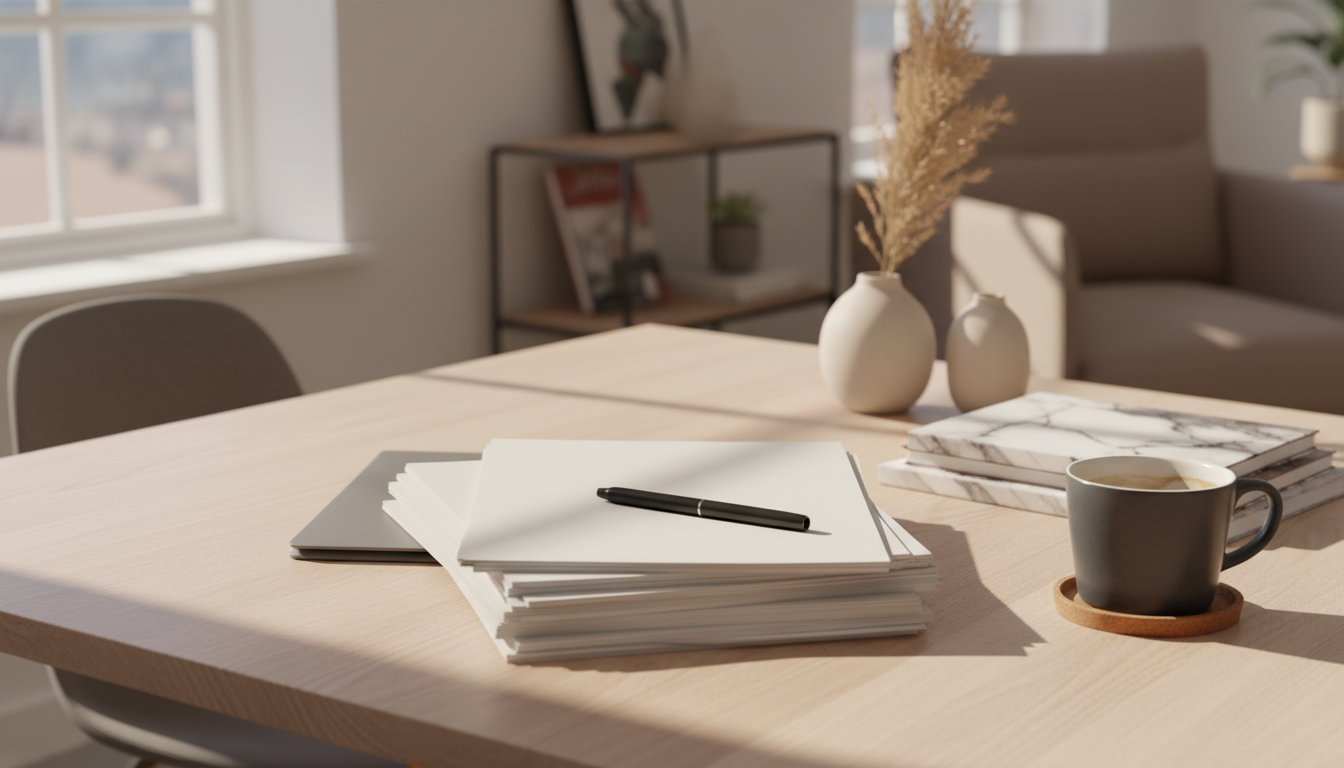
A Desk Space That Does It All: A Practical Plan for Work, Creativity, and Daily Life
A multifunctional desk setup supports focused work, quick transitions, and a calmer home—without needing a dedicated office. The difference usually isn’t more space; it’s clearer “modes,” smarter zoning, and storage that makes it easy to reset. With a few repeatable rules for layout, lighting, ergonomics, and cables, a single surface can handle deep work, calls, planning, and creative projects without turning into a permanent pile.
Start with your desk “modes” (and design for fast switching)
Before buying organizers or rearranging furniture, define what your desk needs to do on an average week. Most people only need three to five primary modes: deep work, video calls, admin tasks, sketching/reading, and charging/personal planning.
- List your 3–5 desk modes and write what must stay on the desktop for each one (usually fewer items than expected).
- Decide what can live off-surface in a drawer, cart, or shelf until needed.
- Adopt a simple reset rule: everything returns “home” in under 2 minutes.
- Add one landing-zone tray for items that drift—mail, adapters, loose pens—so the desk doesn’t slowly disappear.
If you want a step-by-step blueprint with room-by-room examples, the Creating a Desk Space That Does It All – Ebook is a practical guide for building routines and layout rules that keep a single desk flexible.
Desk layout: zones that keep tools close and clutter away
Zoning is what makes one desk feel like several. Instead of spreading tools across the whole surface, assign them to predictable areas so your hands know where to go—and your eyes aren’t scanning through clutter.
- Primary zone (center): keyboard/mouse or notebook aligned with your chair; keep this area clear for posture and comfort.
- Secondary zone (dominant-hand side): writing tools, tablet, planner, sketchpad—things you grab frequently but not constantly.
- Reference zone (non-dominant side): book stand, document holder, or tablet stand for reading without neck strain.
- Vertical zone: monitor risers, shelves, pegboards, rails, and hooks to move storage upward instead of outward.
| Zone | Best for | What belongs there | Rule to keep it usable |
|---|---|---|---|
| Primary (center) | Typing, focused work | Laptop/keyboard, mouse, main notebook | Nothing stored here overnight |
| Secondary (dominant side) | Notes, creative tasks | Pens, tablet, small pad, stapler | Limit to one tray or caddy |
| Reference (non-dominant side) | Reading, meetings | Book stand, document holder, water bottle | No loose paper; clip or file |
| Vertical (above/behind) | Storage, display, charging | Shelves, pegboard, hooks, lamp | Keep eye-level area visually calm |
Ergonomics that work for both laptop days and monitor days
A desk that supports multiple modes should also support your body. Start with the chair, then adapt the desk surface around it. Ergonomic basics from sources like OSHA’s Computer Workstations eTool and NIOSH ergonomic workstation guidelines focus on neutral joints and minimizing repeated strain.
- Adjust chair height first so elbows sit near 90 degrees and shoulders stay relaxed.
- For long laptop sessions, use a laptop stand plus an external keyboard and mouse to reduce neck flexion.
- Place the top of your monitor around eye level and about an arm’s length away; tilt slightly to reduce glare.
- If your feet don’t rest flat, add a footrest (or a sturdy box). Stable footing improves posture and reduces fidgeting.
A small tip that helps switching: keep your “laptop kit” (stand + keyboard + mouse) together so it moves on and off the desk as one unit, rather than becoming three separate items that wander.
Lighting that supports focus, calls, and evening wind-down
Lighting is often the hidden reason a desk feels tiring. The goal is even, comfortable illumination that works for screens, handwriting, and camera use.
- Layer light: an ambient room light plus a task lamp reduces harsh contrast.
- For video calls, face a soft light source; avoid a bright window behind you that turns you into a silhouette.
- Choose a task lamp with adjustable direction; neutral or adjustable color temperature stays versatile across work and creative modes.
- In the evening, lower brightness and shift warmer when possible to reduce eye strain and support sleep habits; Harvard Health discusses how blue light exposure can affect sleep patterns (Blue light and sleep).
Cable control and charging: fewer cords, fewer interruptions
Storage that makes resetting easy (not perfect)
Make it inspiring without making it busy
If calming rituals help you transition between modes—especially from work to evening—consider pairing your reset routine with a simple wind-down practice. The How Essential Oils Can Ease Stress and Anxiety – eBook Guide offers approachable ideas for relaxation routines that fit neatly into a home desk setup.
A simple weekly tune-up to keep the desk multifunctional
FAQ
What is the best way to set up a desk for multiple activities in a small space?
Define 3–5 desk modes, then set up clear zones (primary, secondary, reference, and vertical) so tools don’t compete for the same surface area. Use portable caddies for mode-specific gear and rely on a two-minute reset routine plus a single landing zone to prevent clutter creep.
How can a laptop setup be ergonomic for long work sessions?
Use a laptop stand with an external keyboard and mouse so your screen rises to a comfortable height while your wrists and shoulders stay neutral. Adjust the chair first, keep elbows near 90 degrees, and add a footrest if your feet don’t rest flat.
How do you keep a desk setup from getting cluttered every day?
Give frequently used items a defined “home,” limit paper to an in-tray and an action folder, and corral drifting items in one landing-zone tray. A weekly 10-minute reset (clear, wipe, empty the landing zone, and put items back) keeps the system stable.
Recommended for you



Ratchet Chain Binder Set Guide for Heavy Hauls
Jul 12, 2026
Tight Budget Checklist: How Much to Spend Eating Out
Jul 13, 2026









Leave a comment