-
Shop
- Adidas
- Advanced Technologies
- Bathroom
- Best-Sellers
- Car Accessories
- Dating & Social Skills
- Digital Resources
- AI & Technology
- AI Skills
- Beauty
- Budgeting & Saving
- Car Buying & Ownership
- Cozy Feast Collection
- Electronics & Technology
- Emotional Intelligence
- Entrepreneurship & Business Growth
- Financial Education
- Financial Independence
- Financial Mindset & Psychology
- Goal Setting
- Home Styling & Organization
- Kitchen & Recipes
- Leadership
- Mindfulness
- Mindset
- Motivation
- Online Business
- Parenting & Child Development
- Personal Style & Fashion
- Pet Lifestyle & Wellness
- Positive Thinking
- Productivity
- Self Confidence
- Sleep Improvement
- Smart Life with AI
- Stress Management & Relaxation
- Travel Planning
- Wellness
- Yoga & Fitness
- Yoga & Mind-Body Practices
- Easter Products
- Education & Learning
- Family & Parenting
- Fashion
- Alexander McQueen
- Bags
- Bags & Wallets
- Balenciaga
- Belts
- Blazers
- Bottega Veneta
- Brunello Cucinelli
- Burberry
- Chanel
- Chloé
- Dior
- Dolce & Gabbana
- Dresses
- Etro
- Fendi
- Gucci
- Hats & Hair Accessories
- Jewelry
- Jil Sander
- Keychains
- Kiton
- Luggage
- Miu Miu
- Off-White
- Outerwear
- Prada
- Rick Owens
- Saint Laurent
- Shoes
- Socks & Tights
- The Row
- Tom Ford
- Valentino
- Valentino Garavani
- Versace
- Vivienne Westwood
- Watches
- Furniture
- Gadgets
- Health & Beauty
- Health & Wellness
- Home & Garden
- Home Electronics
- Kids & Babies
- Kitchen
- Lighting
- Patio, Lawn & Garden
- Personal Growth
- Pet Care
- Pet Supplies
- Pets
- Smart Home Living Guides
- Sport & Outdoors
- Stress Relief & Relaxation
- TikTok Growth & Monetization Mastery
- Travel
- Wealth
- Wealth Building
- Popular
- Best deals
AI Battery Optimization: Make Your Phone Last Longer

How AI Helps Your Phone Last Longer (and Stay Healthier)
Today’s smartphones don’t just react to what you tap—they quietly learn how you use your device. On-device AI watches patterns like which apps you open at certain times, when you usually charge, and what “background” activity is truly necessary. The payoff is practical: longer daily battery life and fewer habits that accelerate battery wear. Combine those built-in tools with a few targeted settings and a cooler, smarter charging routine, and most phones can feel noticeably more dependable day to day.
What “AI battery optimization” actually does
Battery optimization isn’t a single switch. It’s a bundle of small decisions your phone makes to cut waste without getting in your way.
- Learns app usage patterns so rarely used apps don’t keep running tasks in the background.
- Prioritizes CPU/GPU resources so tasks finish faster and the phone returns to low-power states sooner.
- Adjusts network behavior (5G/LTE/Wi‑Fi scanning) based on context to reduce radio drain.
- Uses sensor fusion (motion, location, proximity) to avoid waking the device unnecessarily.
- Applies device-specific models that consider temperature, charging speed, and charging history over time.
It helps to separate two goals: battery life (how long you last today) and battery health (how much capacity the battery still holds after months/years). AI can improve both, but the biggest health gains come from reducing heat and avoiding high-stress charging patterns.
Turn on the built-in AI features (Android and iPhone)
Most phones already include AI-driven power controls—you just need to confirm they’re enabled and tuned for your usage.
- Android: enable Adaptive Battery/Adaptive Power, then review Battery usage by app to spot outliers.
- Android: set “Restricted” background battery for apps that shouldn’t run continuously (many social, shopping, or game apps).
- iPhone: enable Optimized Battery Charging and review Battery Health & Charging for capacity trends.
- iPhone: use Low Power Mode strategically on travel days or long screen-on sessions.
- Both: keep system updates current because power-management models improve over time.
AI-driven settings that usually make the biggest difference
| Area | What to enable | What it improves | Common trade-off |
|---|---|---|---|
| Background apps | Adaptive Battery / Background restrictions | Less standby drain | Slower notifications for low-priority apps |
| Charging | Optimized charging / charging limits (where available) | Better long-term battery health | May not reach 100% until close to wake-up time |
| Display | Auto brightness / adaptive refresh | Lower screen power use | Brightness may fluctuate more than manual |
| Connectivity | Wi‑Fi assist controls / reduce 5G when not needed | Less radio drain | Possible lower peak speeds |
| Location | Approximate location / limit always-on access | Fewer sensor wakeups | Less precise tracking for some apps |
Daily habits AI can’t fully fix (but can complement)
AI can reduce waste, but it can’t rewrite physics. Heat and high-voltage “full” charging are still the biggest battery-aging accelerators.
- Watch heat first: avoid leaving your phone in a hot car, on a sunny window, or under pillows while charging.
- Use slower charging when you can: fast charging is convenient, but it often adds heat—especially on older batteries.
- Avoid extremes: deep discharges (0%) and sitting at 100% for long periods can increase wear; moderate ranges are gentler when practical.
- Disable “always-on” features you don’t use: always-on display, constant hotspot, or continuous GPS tracking.
- Replace weak chargers/cables: unstable charging can create inefficiency and temperature spikes.
Find the real battery drains with a quick audit
When battery life feels “suddenly worse,” it’s often one of three things: a misbehaving app, poor cellular signal, or a settings change that increased background activity. A short audit usually reveals which one.
- Check the last 24 hours and last 7–10 days battery stats to separate one-off spikes from consistent drains.
- Look for apps with high background time rather than only high screen time.
- Identify connectivity drains: poor signal areas push radios to work harder; prefer Wi‑Fi when cellular signal is weak.
- Review permissions: limit background refresh, notifications, and location access for non-essential apps.
- After changes, re-check for 2–3 days so the system can relearn patterns and stabilize.
For official steps and menu locations, use the platform guides: Android Help: Extend your battery life and Apple Support: About Optimized Battery Charging.
AI-friendly charging routines for better battery health
Charging is where battery health is won or lost. The goal is simple: reduce time spent hot and reduce time spent “full” at high voltage.
For a deeper look at lithium-ion aging basics, Battery University’s guidance on prolonging lithium-based batteries explains why heat and high states of charge matter so much.
Smart tweaks that feel small but add up
A step-by-step checklist you can save
Digital guides and downloads
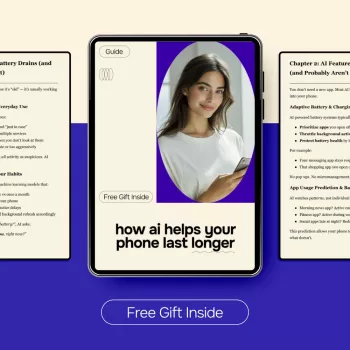
- How AI Helps Your Phone Last Longer – Digital Download
- Motivation Magic: Your Easy-Do Checklist to Spark Drive & Get Stuff Done – Digital Guide
- Social Confidence in Any Situation – Printable Checklist (Digital Download)
FAQ
Does AI battery optimization reduce performance?
Most of the time, it limits background work and schedules tasks more efficiently rather than slowing what you’re actively doing. Any noticeable impact is usually limited to delayed background sync or notifications for apps you’ve restricted.
Is it better to charge to 80% or 100%?
Charging to 80–85% on routine days can reduce long-term wear, while 100% is fine when you need maximum runtime. Optimized charging helps either way by reducing how long the battery sits at a full charge.
Can software improve battery health once capacity has dropped?
Capacity loss is physical battery aging, so software can’t restore the original maximum capacity. What it can do is reduce drain and heat, which may slow further wear and make daily runtime feel more stable.
Recommended for you


Fendi Virgin Wool Pants: Fit, Drape & Care Guide
May 24, 2026













Leave a comment